📓 Google AI · NotebookLM
Google NotebookLM
Tips
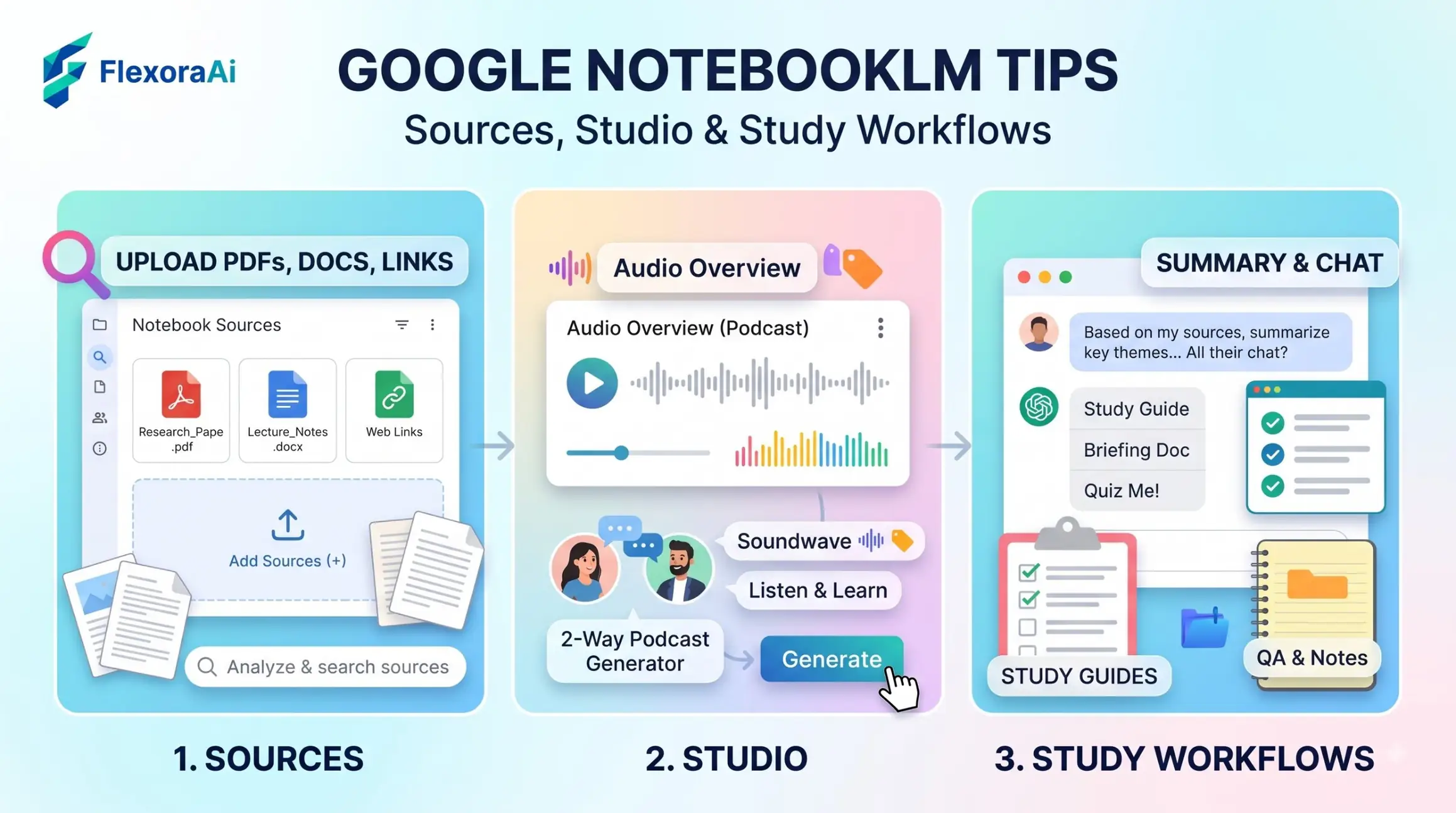
Most AI tools answer from everything they know. NotebookLM answers from what you give it, and that makes it one of the most useful AI tools for study and research. This guide, part of our Google AI tools guide, shows how to set it up, which features are worth your time, and the habits that keep it accurate.
Short answer: Upload your sources, ask questions in the chat, and use the Studio panel to create overviews, mind maps, reports, flashcards and quizzes. Every answer cites the passage it came from, so you can check it.
Worth knowing
- Answers come from your sources, with citations.
- The screen has three panels: Sources, Chat and Studio.
- Limits and names have changed during 2026, so check your plan.
The three panels
| Panel | What it does |
|---|---|
| Sources (left) | Where you add documents, links and notes |
| Chat (middle) | Where you ask questions and read cited answers |
| Studio (right) | Where you generate overviews, mind maps, reports and more |
What the Studio can make
- Audio Overviews. A podcast-style discussion of your sources.
- Video Overviews. A narrated video built from your material.
- Mind maps. An interactive map of how ideas connect.
- Reports, study guides, flashcards and quizzes. For revision and writing.
- Slide decks and infographics. For presenting what you've found.
Limits to know
Reports in 2026 describe the free plan as 100 notebooks, 50 sources per notebook, and up to 500,000 words or 200 MB per source. Chat and Studio draw on a usage allowance that refreshes every five hours until a weekly limit. One report says Google changed to compute-based limits on September 2, 2026, so long chats and video overviews use more of your allowance than short questions.
Features like these are the practical end of Google's AI, and they sit apart from the fun stuff in our complete list of Google Easter eggs.
A study workflow
- Create a notebook for one subject.
- Add your lecture notes, readings and links.
- Ask for a summary, and open the citations.
- Make a mind map to see how topics connect.
- Generate flashcards, then quiz yourself.
- Listen to an Audio Overview while you walk.
Tips for better results
- Add good sources. The output is only as good as the input.
- Name your notebooks clearly. It helps when you have many.
- Ask specific questions. “What does chapter 3 say about X?” beats “Summarize.”
- Check the citations. Click through to the passage.
- Use Deep Research sparingly. It draws on your allowance.
Where it fits with other tools
NotebookLM is not a general chatbot. It's best when you already have material. For open questions, use Gemini, ChatGPT, Claude or Perplexity, then bring the best sources into a notebook.
If you're choosing tools for study or work, our AI tool finder can help you shortlist.
Prompts to try inside a notebook
- “What are the three main arguments in these sources, and where do they disagree?”
- “List every date and name mentioned, with the source for each.”
- “Explain this chapter as if I'm new to the subject.”
- “Create five quiz questions with answers and the passage that supports each.”
- “What is missing from these sources that I should look up?”
Common mistakes
- Uploading too much. A smaller, better set of sources gives sharper answers.
- Skipping the citations. They're the reason to use the tool.
- Treating an Audio Overview as the final word. It's a summary, so go back to the sources for detail.
- Forgetting limits. Heavy use of Studio tools can use up your allowance.
Good uses beyond school
Professionals use notebooks to prepare for meetings, compare contracts, or make sense of research reports. A small team can load a project's documents and ask questions without searching through folders. Whatever the use, keep sensitive documents out unless your organization permits it.
Share a notebook only with people who should see every source in it, since sharing exposes the material as well as the answers.
How we checked this: We used Elephas, Tom's Guide, Freeacademy and several 2026 explainers for plan limits and the September 2026 usage change, and Google's description of the Studio panel as reported by those sites. Limits changed several times, and sources disagree on exact figures. AI products change quickly, so check dates and your own screen before you rely on any detail. If something here is out of date for you, email ownerflexora.ai@gmail.com and we will fix it.
Your turn: Make a notebook from one chapter of something you're studying. Ask three questions, open each citation and decide whether the answer was fair.
A good notebook feels like a patient study partner who has read exactly what you've read.
More tricks to try
Want to know what powers all of this? The Google TPU vs NVIDIA GPU explained guide is next.