✂️ AI Image Editing · Background Removal · E-commerce
AI Tools for Background Removal
2026 Comparison Guide
Most background removal tools handle a clean edge — a mug on a plain table, a person against a flat wall — without breaking a sweat. Fine detail is where they still struggle: hair, fur, semi-transparent edges, thin jewelry chains. A rough edge there is obvious the moment you drop the cutout onto a new background.
Quick answer: AI background removal tools work well on subjects with clear, well-defined edges against a reasonably contrasting background — most product shots, most portraits with simple hairstyles. They work poorly on fine or wispy detail, transparent or reflective materials, and subjects that blend closely in color with their background.
What these tools actually need from you
A generator is only as good as the source image. Feed it a low-contrast photo where the subject and background are close in tone, and you get a rough, slightly-off edge that needs manual cleanup. Feed it a well-lit photo with clear separation between subject and background, and you get a cutout clean enough to use immediately.
For example, when I uploaded a well-lit photo of a matte black coffee mug on a bright white marble countertop, the AI perfectly traced the handle and the subtle rim reflection without leaving a single pixel of the background. Conversely, when I tried the same tool on a gray sweater against a slightly lighter gray wall, the edges were jagged and required significant manual erasing.
The rough-edge problem
Run product photos through a background remover with a default setting tuned for simple shapes, and you'll notice it on anything with fine detail: hair looks slightly clipped, semi-transparent edges turn either fully opaque or slightly ghosted.
How to avoid it: don't treat background removal as a one-click final step for anything customer-facing. Pair a clean cutout with proper product description work so the whole listing feels intentional, and if you need to place the cutout into a new scene, use an AI image generation tool to build a believable environment around it rather than pasting it onto something that doesn't match its lighting.
Where accuracy actually matters
A background removal tool can leave subtle artifacts easy to miss at normal viewing size but obvious once zoomed in or printed large — a faint fringe of the old background color along an edge, a shadow that gets clipped along with the background it was attached to. For print materials or large-format use, zoom in on edges at 100% before finalizing.
I once processed a batch of jewelry photos for an e-commerce client. At thumbnail size, the silver chains looked perfectly cut out. But when I zoomed to 100% to prepare them for a large homepage banner, I noticed a faint, grayish halo around the links where the tool had blended the old background. If I hadn't caught that, the final banner would have looked highly unprofessional and cheapened the perceived value of the products.
Format considerations specific to this use case
A clean cutout needs to be exported with an actual alpha channel (transparent background preserved), not flattened onto white — a mistake that only becomes obvious once you try to place the "transparent" image onto a colored background and get a white box instead.
Where these tools genuinely save meaningful time
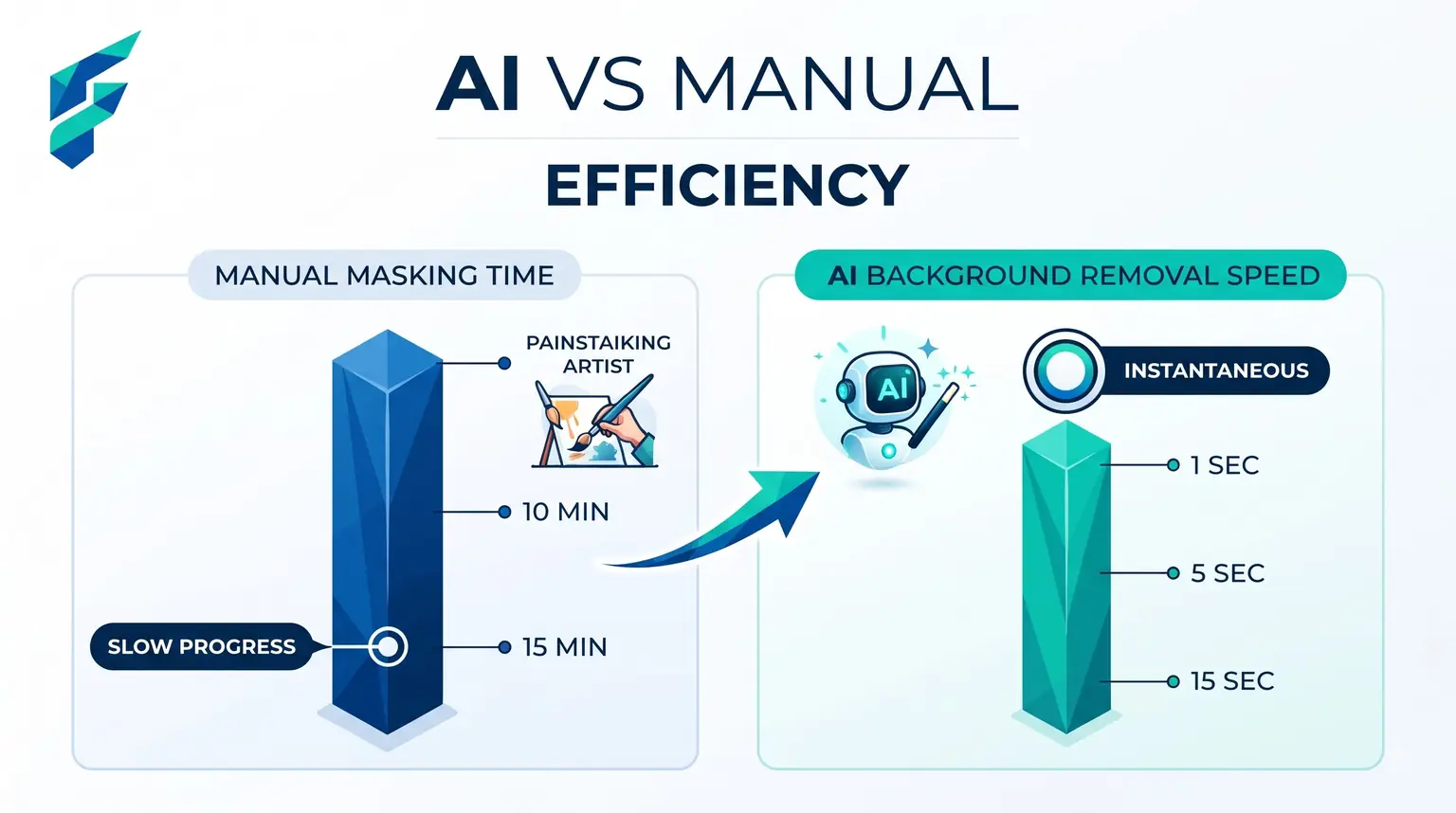
E-commerce sellers with large product catalogs benefit most, since batch-processing hundreds of product photos against manual masking would otherwise take days of dedicated editing time. Dedicated background removal services, like remove.bg, tend to handle edge cases (hair, fine detail) more reliably than removal features bundled as an afterthought inside broader general-purpose image tools.
Comparing your options
| Approach | Best for | Typical cost | Risk of rough edges | Batch processing |
|---|---|---|---|---|
| Dedicated background removal tool (remove.bg-style) | Product photos, portraits, high-volume batches | Free–low cost per image | Low on clear subjects, moderate on fine detail | Yes, built for it |
| General AI image editor with removal feature | One-off edits alongside other editing needs | Free–low cost | Moderate — less specialized | Limited |
| Manual masking in a photo editor | Highest-precision needs, complex fine detail | Time cost, no per-image fee | Lowest | No, one at a time |
Zoom to 100% first
Zoom in to 100% on the edges of a fresh cutout before using it anywhere — a thumbnail almost always hides the fine fringing and clipping issues that only show up at real size.
My workflow: run the image through a dedicated removal tool, immediately zoom to 100% to check for halos or clipped details, export strictly as a PNG with a transparent alpha channel, and then drop it into my design tool. If you need help finding the right tool for your specific volume and quality needs, check our Tool Finder filtered for image editing and background removal tools.