📱 Google Easter Eggs · Mobile Tricks
Google Gravity Mobile
Trick
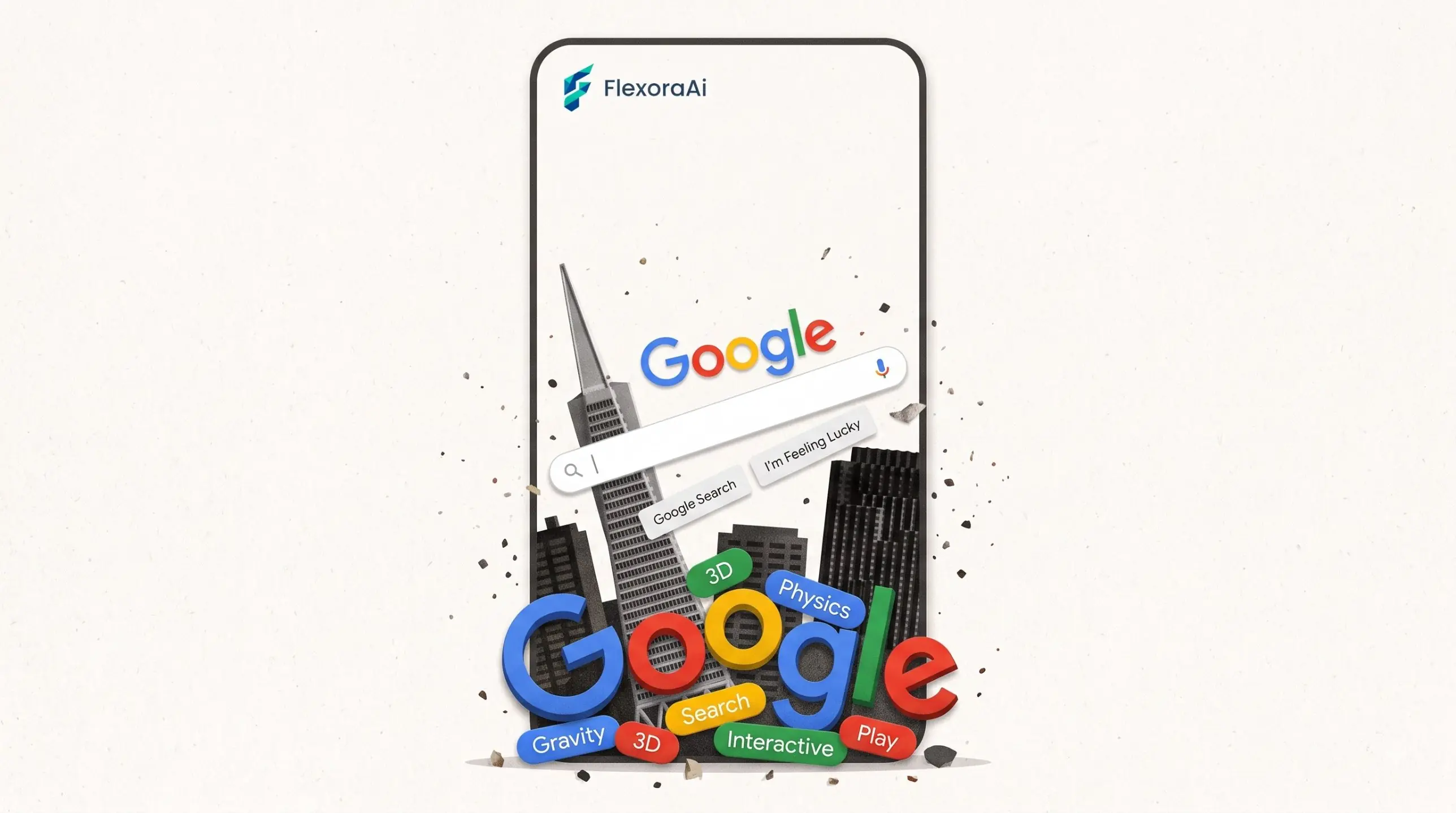
It started as a desktop trick, but Google Gravity has always been friendlier to touchscreens than people expect. This post covers what works on mobile browsers, what the tilt feature is, and the small things that make it feel good on a phone. It's one of the practical guides in our Google gravity and underwater tricks guide.
Short version: Google Gravity works on mobile browsers. Reports say it handles touch well, and the creator added device orientation support, so tilting your phone can move the scene.
Worth knowing
- Touch works: drag the fallen elements with your finger.
- Tilt may work if your phone allows motion access.
- Landscape gives the page more room.
What works on mobile
| Feature | On a phone | Tip |
|---|---|---|
| Dragging elements | Works with touch | Use one finger. |
| Tilt control | Depends on motion access | Allow motion if asked. |
| Search box | Opens the on-screen keyboard | Close it to see the full scene. |
| Performance | Fine on recent phones | Close other apps on older ones. |
Why tilt is a good trick
A phone has sensors that tell a web page how it's oriented. Mr.doob added support for this to Google Gravity, so the "gravity" in the scene can follow the way you hold the device. It turns a desktop curiosity into something you can hold and tip. Some phones ask for permission before sharing motion data, and the experiment can't use tilt unless you agree.
It's a small feature, but it's the sort of thing that makes the experiments in our complete list of Google Easter eggs feel alive.
Getting the best result
- Turn the phone sideways. Landscape gives the elements more room.
- Allow motion access. It's needed for the tilt feature.
- Use the original page. Copies may skip the mobile improvements.
- Keep it short. Animated pages drain battery faster than ordinary ones.
Want more from the same era? See the retro Google tricks guide.
How we checked this: We used the creator's own comments about device orientation and user reports of touch support. Sensor permissions vary by phone and browser, so your experience may differ. If something here is out of date for you, email ownerflexora.ai@gmail.com and we will fix it.
Your turn: Open the experiment on your phone, allow motion if asked, and try to tip all the elements into one corner. Share a screen recording with a friend.
More tricks to try
Want a step-by-step walkthrough for your phone? Read Google gravity on phone next.
Frequently Asked Questions
To try it on your phone, visit Mr.doob's original experiment.