🖼️ Google Search Tips · Images
Google Image Search
Tricks
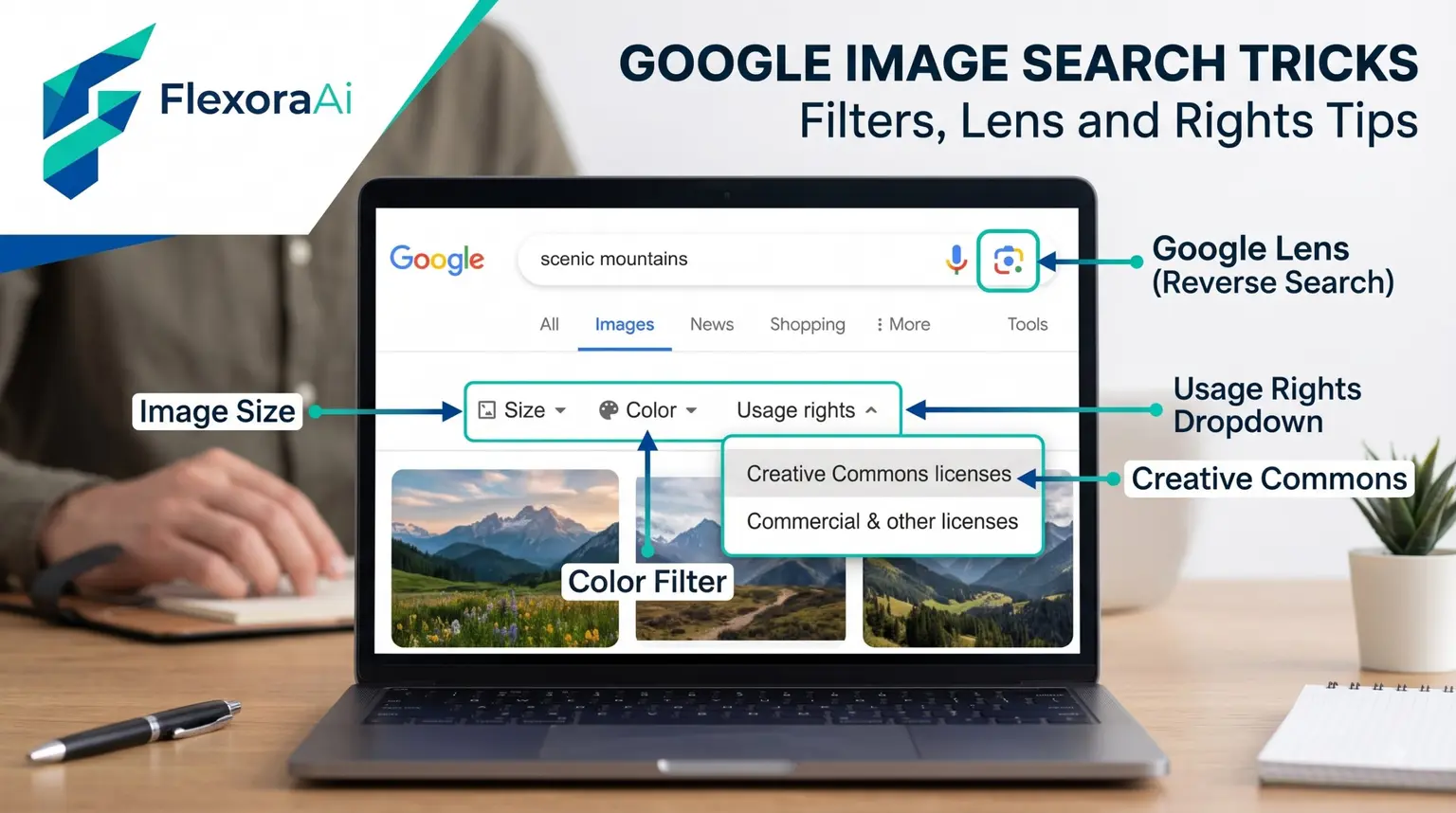
Image search is more than typing a word and scrolling. Google Images can find where a picture came from, spot a transparent logo and filter by license. This guide, part of our Google search tips guide, shows the filters and tricks worth learning, and how to stay on the right side of copyright.
Short answer: Use the camera icon to search with a picture, the Tools menu for size, color, type and usage rights, and Advanced Image Search for exact sizes and aspect ratios. Always check the license on the source page.
Worth knowing
- Reverse image search finds the source of a picture.
- Tools filters by size, color, type, time and usage rights.
- The usage rights filter is a starting point, not a legal guarantee.
The filters, explained
| Filter | Use it to |
|---|---|
| Size | Find large images for print or small icons |
| Color | Match a palette, or choose Transparent for logos |
| Type | Narrow to clip art, line drawings or GIFs |
| Time | See recent pictures |
| Usage rights | Find images labeled for reuse |
| Aspect ratio | Find tall, square, wide or panoramic images |
Reverse image search with Lens
- Open Google Images and click the camera icon.
- Upload a picture, or paste its web address.
- Look at the results for similar images and pages that use it.
- Use Find image source to trace where it first appeared.
Reverse search helps you check where a photo came from, find a higher-resolution version, or see whether a viral picture is real. TinEye is another reverse search service that some people compare with it.
Visual tools like this sit alongside the playful ones in our complete list of Google Easter eggs.
A recipe for a clean icon
- Search for the subject plus the word icon.
- Open Tools and set Color to Transparent.
- Set Size to Large so it stays sharp.
- Set Type to Clip art if you want a simple style.
- Check the usage rights on the source page.
Understand usage rights
Most images online are protected by copyright. The Usage Rights filter limits results to images that are labeled for reuse, including some licensed under Creative Commons. But the label describes a search setting. The license itself lives on the page that hosts the image, so read it before you reuse anything.
Tips
- Credit the source. Even when the license allows reuse.
- Prefer originals. Link to the source instead of copying.
- Use size filters for print. Larger images print better.
- Be careful with faces. Don't reverse search private individuals.
AI image tools are growing too, and our guide to Google Gemini vs ChatGPT for search compares how two assistants handle search and images.
Spotting a misleading picture
- Run a reverse image search to find the earliest appearance.
- Compare the caption with the original context.
- Look for several independent sources showing the same image.
- Check the date, since old photos often resurface as new.
- Be careful with dramatic images that have no source.
If you publish images
- Write descriptive alt text. It helps screen readers and search.
- Use meaningful file names. “red-bike.jpg” beats “IMG_4821.jpg.”
- Set width and height. It prevents layout jumps.
- Compress. Smaller files load faster.
What Lens can do beyond reverse search
- Translate text. Point it at a sign or menu.
- Copy text. Pull words out of a photo.
- Identify things. Plants, animals and landmarks are common uses.
- Find products. It can show similar items to buy.
How we checked this: We used reference guides to Google Images filters, an explainer on Lens-powered reverse search and a developer note that clarifies that the usage rights filter describes a search choice, not a license. Interface details change often. If something here is out of date for you, email ownerflexora.ai@gmail.com and we will fix it.
Your turn: Take one of your own photos and run a reverse image search. See whether any other site has used it.
Images carry stories, and the filters help you find the true one.
More tricks to try
Want to tighten every search? The Google search operators cheat sheet is next.