🎵 Google Search Tricks · Useful Tools
Google Metronome
Trick
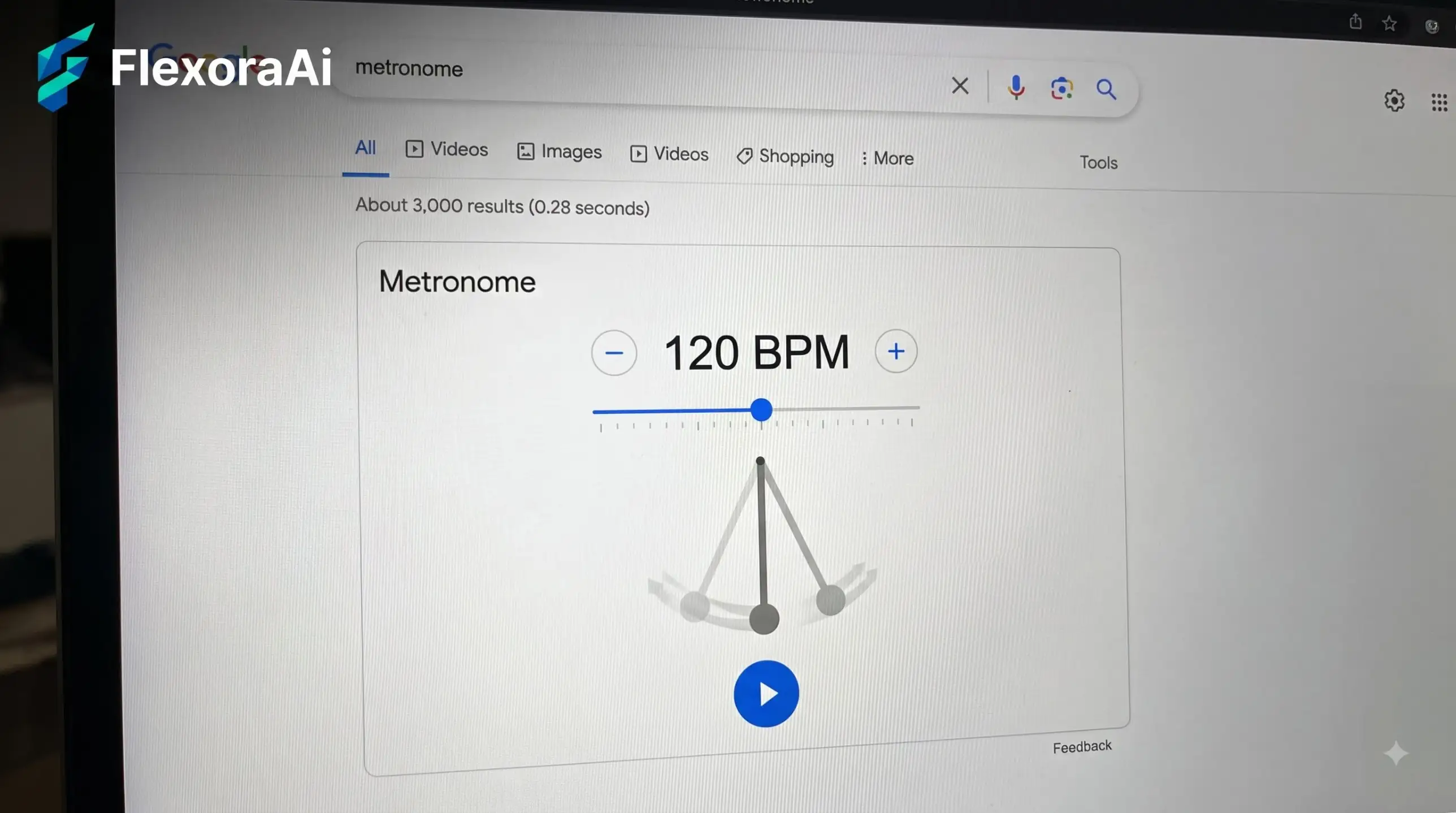
Musicians have used metronomes for two centuries, and Google gave you one in the search bar. No app, no account, just a slider and a play button. It's one of the most useful tools in our Google search tricks list, and this guide explains how to use it, and how to practice with it so it helps.
Short answer: Search for metronome on Google, press play and set the tempo with the slider. It starts at 100 beats per minute, and reports put its range at 40 to 208.
Worth knowing
- Starts at 100 beats per minute, adjustable with a slider.
- Reported range is 40 to 208 beats per minute.
- Fine for practice, and not always perfectly steady.
How to use it
- Search for metronome in Google.
- Drag the slider to set the tempo.
- Press play and play along.
- Press stop when you're done.
What the tempos mean
| Tempo name | Approximate beats per minute | Feel |
|---|---|---|
| Largo | 40 to 60 | Slow and broad |
| Adagio | 66 to 76 | Slow and expressive |
| Andante | 76 to 108 | Walking pace |
| Moderato | 108 to 120 | Moderate |
| Allegro | 120 to 156 | Fast and lively |
| Presto | 168 to 200 | Fastest |
The ranges are approximate, and conductors and teachers differ. The point is that a number gives you a shared language: if a piece says 72, everyone knows roughly how it should feel.
A built-in tool like this fits the practical side of our complete list of Google Easter eggs, where small utilities hide in plain sight.
A simple practice routine
- Pick a short passage that gives you trouble.
- Set the metronome well below your target tempo.
- Play it cleanly three times in a row.
- Raise the tempo by a small step, then repeat.
- Finish with one run at the target tempo, or slightly below it.
The aim isn't speed. It's accuracy at each tempo, which is what makes the speed arrive by itself.
When to use something else
Browser tools run on a shared processor, so heavy tabs can occasionally make the beat wobble. If you're recording, or practicing something that depends on tight timing, a dedicated metronome or a well-built app is a safer choice.
Tips
- Use headphones. They help you hear the click over your instrument.
- Close other tabs. It reduces the chance of timing drift.
- Count aloud. Saying the beat helps lock in the rhythm.
- Practice rests too. Silence is part of the music.
For more everyday tools with a vintage feel, see our retro Google tricks guide.
Beats, measures and counting
A metronome gives you a steady pulse, and music groups those pulses into measures. In a common four-beat measure you count one, two, three, four, with a slight emphasis on one. In a waltz, you count three. The metronome doesn't care which, so the counting is up to you.
| Time signature | Count | Typical feel |
|---|---|---|
| 4/4 | 1 2 3 4 | Pop, rock and most marches |
| 3/4 | 1 2 3 | Waltzes |
| 6/8 | 1 2 3 4 5 6 | Rolling, in two groups of three |
Try counting out loud over the click. If you lose the count, stop, breathe and start again at one.
A short history of the metronome
The metronome as we know it was patented in 1815 by Johann Maelzel, building on earlier work by others. Beethoven was among the first major composers to add metronome markings to his scores, which let musicians see his intended tempos for the first time. Two centuries later, the idea hasn't changed: a steady click to play against.
Finding a song's tempo
Search for the song name and its beats per minute, then set the Google metronome to match. Or tap along and count how many taps you make in fifteen seconds, then multiply by four.
How we checked this: We used PopSci for the default tempo, Digital Trends for the 40 to 208 range, and a guide to Google's non-search features for the accuracy caution. Tempo names and ranges are standard approximations. If something here is out of date for you, email ownerflexora.ai@gmail.com and we will fix it.
Your turn: Choose a song you know, find its tempo with a quick search, and play along with the Google metronome set to that number.
A metronome is humble and honest. It simply keeps time and lets you decide what to do with it.
More tricks to try
Want a trick with a bit of humor? The Google recursion trick is next.
Frequently Asked Questions
For more built-in tools, read PopSci's guide to Google's built-in tools.