🧭 Google Search Tips · Advanced
Google Advanced
Search Tips
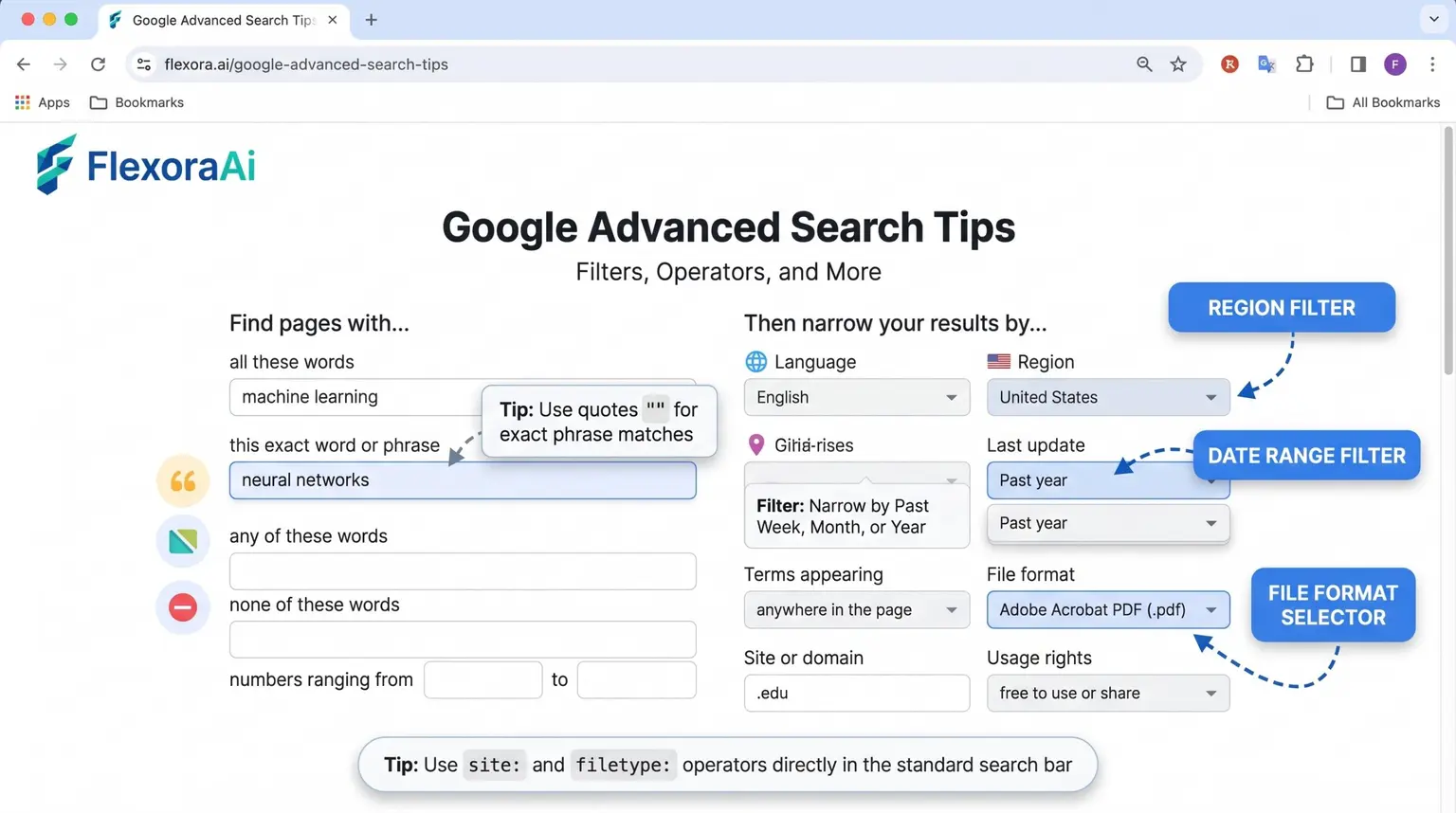
Google's Advanced Search page is one of its best-kept secrets, because few people open it. It turns the operators you'd otherwise memorize into plain boxes. This guide, part of our Google search tips guide, shows how to use the page, the Tools menu and a few habits that make every search sharper.
Short answer: Use the Tools menu to filter by time, add quotation marks for exact phrases, a minus sign to exclude words, site: to search one website and filetype: to find documents. The Advanced Search page does the same with boxes.
Worth knowing
- The Advanced Search page lets you set filters without memorizing operators.
- The Tools menu filters by time and other options.
- Combine filters to narrow a search quickly.
What the Advanced Search page offers
| Box | What it does |
|---|---|
| All these words | Requires every word |
| This exact word or phrase | Matches that exact wording |
| Any of these words | Matches any one of them |
| None of these words | Excludes words |
| Language and region | Limits results to a language or place |
| Last update | Limits to recent pages |
| Site or domain | Searches one site |
| File type | Limits to PDFs, documents and so on |
Do the same with operators
| You want | Type |
|---|---|
| An exact phrase | “climate adaptation plan” |
| To exclude a word | jaguar -car |
| One site | site:edu climate |
| A file type | budget filetype:pdf |
| Recent pages | solar after:2026-01-01 |
The two columns do the same work. Boxes are friendlier, and operators are faster once you know them.
Operators like these underlie many of the tricks in our complete list of Google Easter eggs.
Filter with the Tools menu
Under the search box, the Tools menu offers a time filter, with options for the past hour, day, week, month or year, or a custom range. It's the quickest way to find what changed recently.
Combine filters
- Phrase plus site: “carbon tax” site:gov
- Topic plus file type: annual report filetype:pdf
- Topic plus date: battery research after:2026-01-01
- Exclusion: apple -iphone -mac for the fruit
Common mistakes
- Adding a space after a colon. Write site:example.com, not site: example.com.
- Using lowercase OR. The operator needs capitals.
- Piling on filters. Too many can return nothing.
- Trusting old guides. Some operators have been retired.
When to use AI instead
AI search suits open-ended questions, and classic filters suit exact ones. If you're choosing between them, our guide to Google Gemini vs ChatGPT for search compares two popular options.
A worked example
Say you need a recent government report on school funding. Start broad, then narrow in steps.
- Search school funding report.
- Add an exact phrase: “school funding” report.
- Limit to government sites: “school funding” report site:gov.
- Limit to documents: “school funding” report site:gov filetype:pdf.
- Add a time filter from Tools, or after:2025-01-01.
Each step removes noise. If you end up with no results, remove the last filter and try again. A search that is too narrow is as unhelpful as one that is too wide.
Verbatim and other modes
Google sometimes adjusts your words, such as correcting spelling or adding synonyms. Some guides describe a Verbatim option, found under Tools, that makes Google search for your words exactly as typed. Where it's available, it's useful for rare terms and names.
Read results more carefully
- Check the address. It tells you who published the page.
- Check the date. Old pages can mislead on fast-moving topics.
- Read the snippet. It shows whether your words appear in context.
- Open About this result. It gives background on a source.
How we checked this: We used Google's guidance on refining searches, several operator references we compared with each other, and a Search Engine Journal report on retired features. Google changes its interface, so menus may look different. If something here is out of date for you, email ownerflexora.ai@gmail.com and we will fix it.
Your turn: Run the same search three ways: plain, with an exact phrase, and with a date filter. Compare the first page of results.
Advanced search isn't about complexity. It's about telling Google exactly what you mean.
More tricks to try
Want to uncover more built-in tools? The Google hidden features you didnt know guide is next.