🎓 Google Search Tips · Students
Google Tricks
for Students
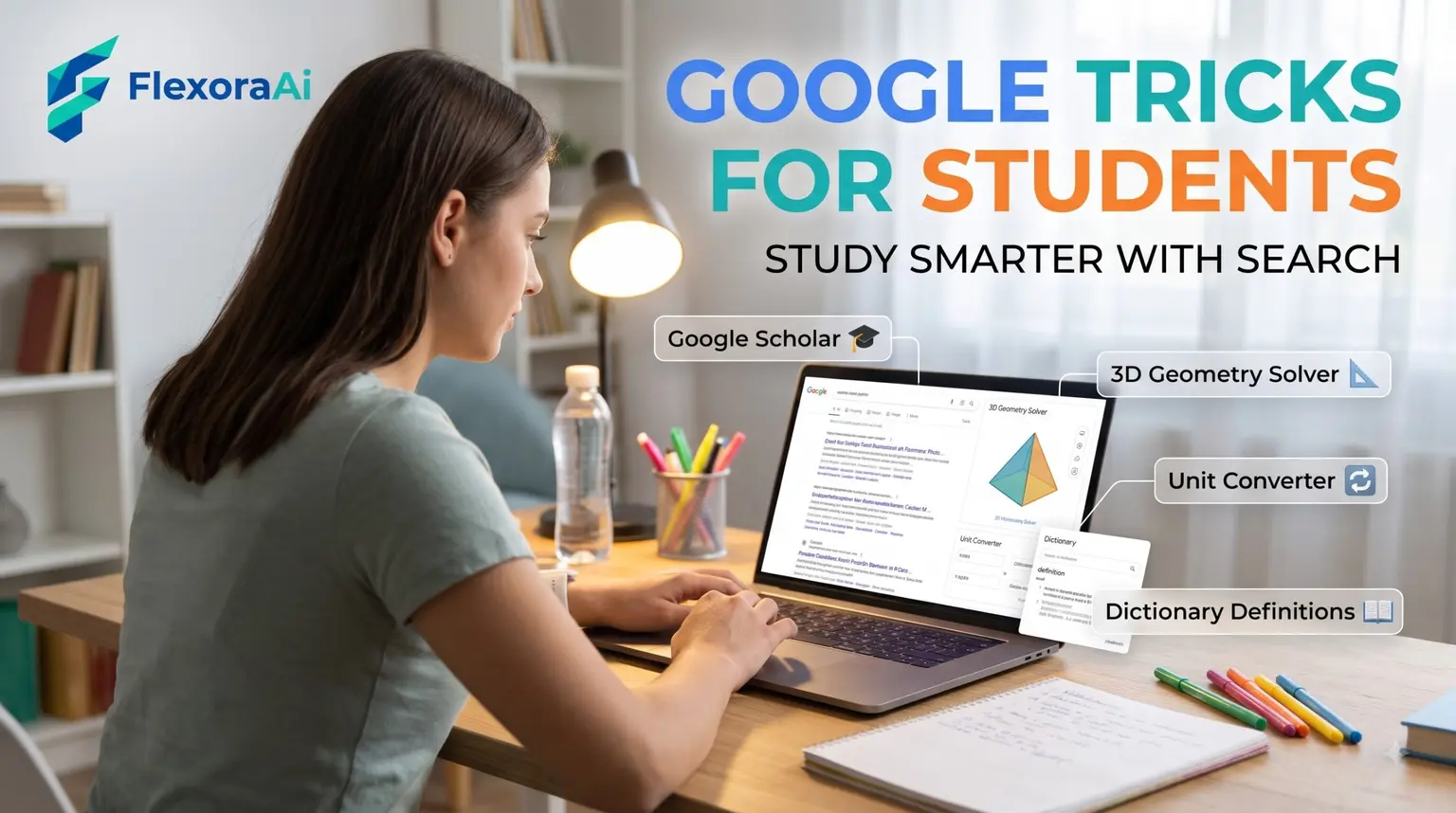
Google can be a study partner if you know how to ask. The difference between a good search and a bad one is often a single word or symbol. This guide, part of our Google search tips guide, collects the tricks that help students most: faster definitions, better sources, easy citations and a way to turn a lecture into notes.
Short answer: Use define: for definitions, Google Scholar for academic sources and its Cite link, filetype:pdf for documents, the built-in calculator for math, and voice typing in Google Docs for notes. Always check your sources.
Worth knowing
- A few operators speed up research.
- Google Scholar has a Cite link and a bibliography manager.
- Voice typing in Docs can turn speech into editable notes.
Search tricks that save time
| Type this | What you get |
|---|---|
| define: entropy | A quick dictionary definition |
| 12 * 7.5 | The answer, in the built-in calculator |
| 10 miles in km | A unit conversion |
| climate report filetype:pdf | PDF documents only |
| “social contract” -rousseau | The phrase, without that word |
Find better sources with Scholar
Google Scholar searches academic papers, books and court opinions rather than the whole web. Under each result there's a Cite link that shows the citation in styles such as MLA, APA and Chicago. Scholar also has a bibliography manager in its settings that exports to formats like EndNote and BibTeX.
Google has published its own tips for Scholar, including how to save articles to a library and set up alerts. It's worth an hour of any student's time.
Take notes by voice
Google Docs has a voice typing tool. Open Tools, choose Voice typing, and click the microphone. It works in a lecture, a recorded video or a brainstorming session, though you'll need to tidy the text afterward.
Study tools like these are the practical side of our complete list of Google Easter eggs, where useful features hide beside the playful ones.
A simple research routine
- Write your question in one sentence.
- Pick three keywords and search with quotation marks for exact phrases.
- Use Scholar for academic sources.
- Open at least three sources and compare them.
- Save the citation as you go, not at the end.
Using AI wisely
AI tools such as ChatGPT, Claude and Gemini can explain ideas and quiz you, but they can also be wrong. Treat their answers as a starting point. Check facts against a source you can cite, and follow your school's rules on what's allowed.
Checking a source quickly
- Who wrote it? Look for an author or an organization.
- When? Check the date, especially for science and technology.
- Where does it get its facts? Good sources name theirs.
- Does anyone else say the same? Compare at least two.
For a map of other Google tools, see our Google products Easter eggs list.
A 20-minute study session
- Set a timer for 20 minutes with a search for timer for 20 minutes.
- Write the one question you want to answer.
- Search with exact phrases and open three sources.
- Write a two-sentence summary in your own words.
- Save the citation before the timer ends.
Quote or paraphrase?
A quotation uses someone's exact words and needs quotation marks and a citation. A paraphrase restates the idea in your own words and still needs a citation. Copying text without either is plagiarism. If you're unsure, ask your teacher how they want sources handled.
How we checked this: We used Google's own Scholar tips, student-focused Google guides from several universities and libraries, and Lifehacker's guide to student tricks. Menus change, so check your own screen. If something here is out of date for you, email ownerflexora.ai@gmail.com and we will fix it.
Your turn: Pick a topic from your next assignment. Find one Scholar paper, copy its citation, and write a two-sentence summary in your own words.
Good research isn't about knowing everything. It's about knowing how to find out.
More tricks to try
Studying with a friend? The fun Google tricks to do with friends guide is next.