📧 Email Management · AI Tools · Small Business
AI Email Management Tools
for Small Business
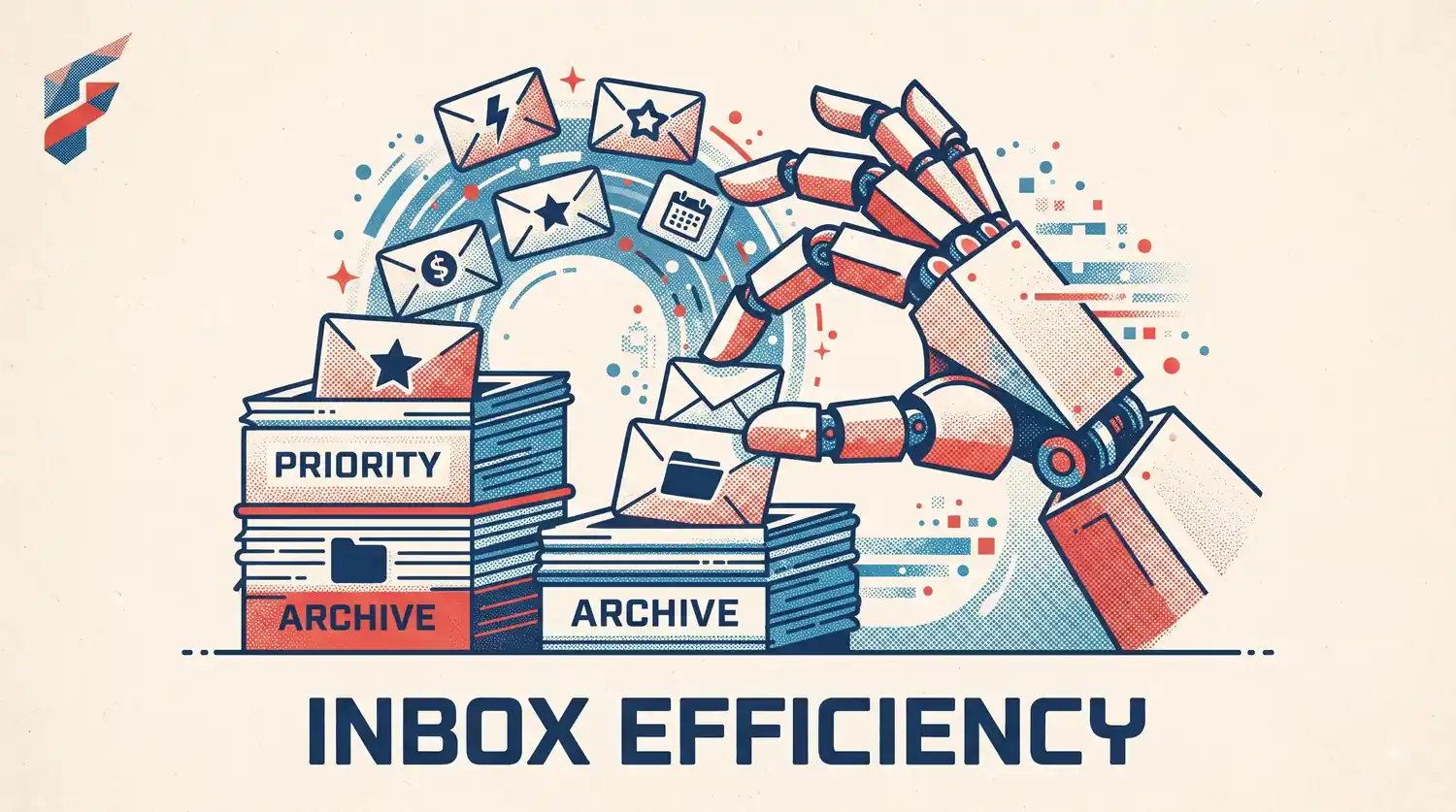
Inbox zero isn't the goal here — most small business owners get some version of "AI will manage your email for you" and expect a fully automated inbox. That's not realistic, and the tools that oversell it disappoint fast. What actually works is narrower and, honestly, more useful: AI cutting the time you spend on the boring parts, while you keep control of anything that matters.
Quick answer: Three specific email tasks are worth automating: sorting/prioritizing what lands in your inbox, drafting replies to routine messages for your review, and summarizing long threads. Anything beyond that — actually sending replies without you looking — is where most small businesses should stop, at least until they've built real trust in the tool.
Sorting and prioritization
Most email platforms (Gmail, Outlook) now have AI-driven sorting built in — flagging what's likely urgent, filtering promotional noise, grouping similar messages. This is close to a free win since it's often already available in a platform you're paying for anyway; check your settings before adding a new tool.
✅ Pro tip: Before investing in dedicated email tools, maximize what you already have. Many platforms like Gemini or Claude can be integrated to enhance your existing email workflow without additional cost.
Drafting replies, not sending them
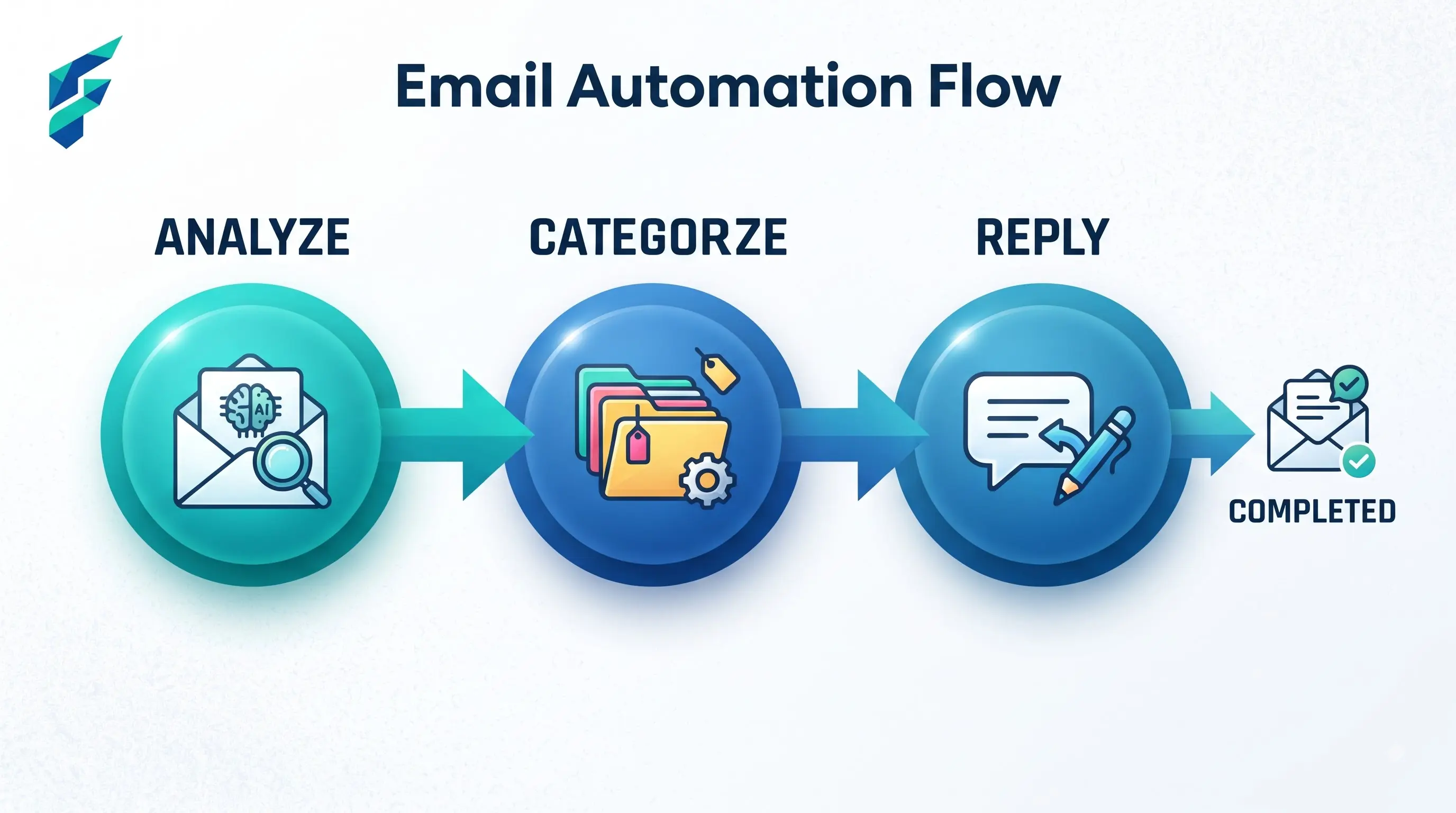
Ask an AI assistant integrated with your inbox to draft a reply to a routine email — a scheduling question, a common customer inquiry — and it'll sit there for your review before it goes out. This is the highest-value, lowest-risk use case: it saves the blank-page time of starting a reply from scratch, while you still control what actually gets sent.
What goes wrong: Trusting auto-send features for anything beyond the most routine, templated messages. A misfired auto-reply to a real customer complaint is a bad first impression that's hard to walk back.
I use AI drafting primarily for vendor communications and scheduling confirmations — the emails that follow the same pattern every time. What used to take me 3-4 minutes per email now takes about 45 seconds: review the draft, tweak a sentence or two, hit send. Over a week, that's easily 2-3 hours saved on emails that don't require deep thought.
💡 Workflow integration: Email drafting fits naturally into broader automation workflows. Our guide on AI workflow tools for small business shows how to connect email automation with other business processes.
Summarizing long threads
If you're inheriting a thread that's gone twenty messages deep, or catching up after a few days away, pasting it into an AI tool for a quick "what's the current status" summary beats reading the whole thing top to bottom. This is a small, unglamorous win that adds up over a busy week.
This connects directly to how we use AI writing tools for small business — both involve turning raw information into something actionable and digestible.
Where AI email tools overpromise
Fully autonomous inbox management
Marketing for these tools often implies you'll barely touch your inbox. In practice, anything with real stakes — a customer complaint, a vendor negotiation, anything unusual — still needs your eyes before a reply goes out. Treat "autonomous" claims skeptically.
Understanding nuance and relationship history
AI doesn't know that a particular client needs a warmer tone because of history you have with them, or that a vendor relationship is currently tense. It writes generically competent replies unless you specifically steer it, every time, toward the context it's missing.
Last month, an AI-drafted response to a long-time client came across as too formal and transactional. The AI had no context that we've worked together for three years and typically use a much more casual tone. I caught it before sending, but it was a reminder that AI doesn't understand relationship history — you have to provide that context explicitly every single time.
Comparing your options
| Tool type | Best for | Typical cost | Auto-send risk | Setup effort |
|---|---|---|---|---|
| Built-in platform AI (Gmail, Outlook) | Sorting, basic drafting, most small businesses | Often included in existing plan | Low — draft only, by default | Very low |
| Dedicated email AI assistants | Heavy email volume, teams sharing an inbox | $10-40/mo per user | Varies — check auto-send settings carefully | Low-moderate |
| Full inbox automation platforms | High-volume, highly routine email (support inboxes) | $50+/mo | Higher — designed to auto-respond | Moderate-high |
For teams managing shared inboxes or high-volume support emails, these tools can integrate with broader operational systems. If you're also using AI staff scheduling tools, you might find email automation helps coordinate team communications around shift changes and availability.
A realistic setup
Turn on your existing platform's AI sorting first — it's likely already there. Add AI-assisted drafting for your most repeated reply types next. Leave auto-send off until you've watched enough drafts to trust the pattern, and even then, keep it off for anything beyond the most routine, templated responses.
My current setup: Gmail's built-in smart sorting (free), AI drafting through no-code AI automation tools for routine emails, and zero auto-send. I review every draft. It's not fully automated, but it cuts my email time by about 60% while keeping quality high.
If you're ready to try this yourself, start with the drafting feature on your most common email type — probably scheduling or vendor communications. Watch it for two weeks before enabling anything more advanced. Check our Tool Finder filtered for email management and productivity tools to compare options.