🎙️ Productivity · AI Transcription · Small Business
AI Tool to Turn a Meeting Recording Into Notes
(Free Options)
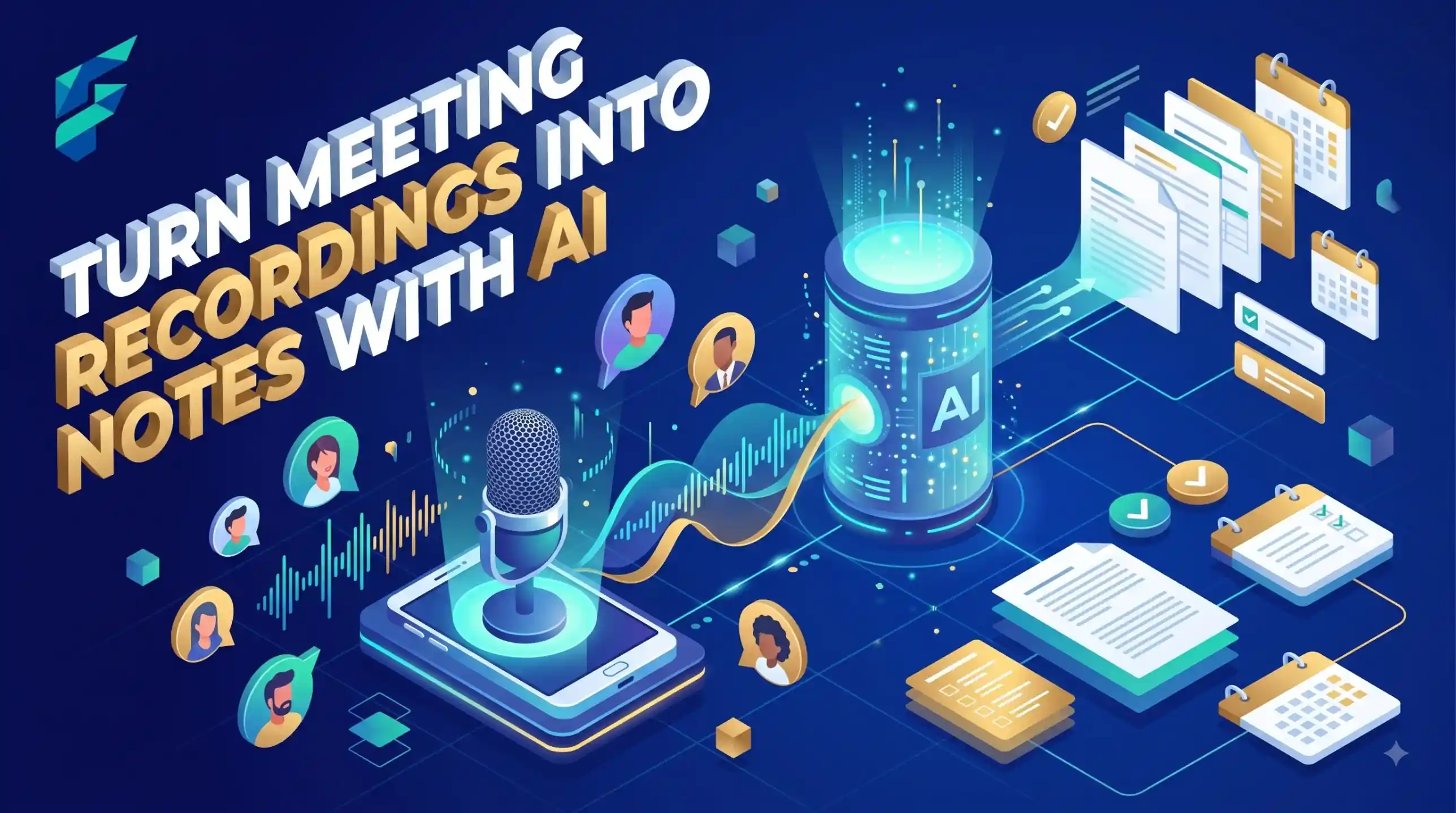
You recorded the meeting. Now you have a 45-minute file and no time to listen again. The fastest way is two steps: turn the audio into text (a transcript), then turn the text into short notes and action items. Some tools do both. Others do one, and a free chatbot does the other.
Quick answer: If you want one tool, try an AI meeting notetaker such as Otter or Fireflies. If you want to pay nothing, transcribe the recording first, then paste the text into a free chatbot with the prompt below. Read the notes once yourself, because names and numbers can be wrong.
Three ways to do it
| Way | Good for | Watch out |
|---|---|---|
| Notetaker tool that joins calls | Regular online meetings | Check the free plan limits on its own site |
| Upload a recording to a transcription tool | A meeting you already recorded | Audio quality changes accuracy |
| Transcript + free chatbot | Zero budget | Long transcripts may need to be split |
Tools
- Otter: An AI meeting notetaker that transcribes conversations and writes summaries and action items. Its site mentions a free Basic plan. Limits can change, so read the current plan on their page.
- Fireflies: An AI meeting assistant that transcribes, summarises and lets you search past conversations. The site offers a free trial button. Check what the free plan covers today.
- A free chatbot (ChatGPT, Claude or Gemini): Not a recorder, but very good at turning a pasted transcript into notes.
We have not run a side-by-side test of accuracy, so test one real meeting before you rely on a tool. For a longer comparison, read our guide to AI meeting transcription tools.
Copy-paste prompt: notes from a transcript
Here is a transcript of a meeting. Turn it into notes.
Give me:
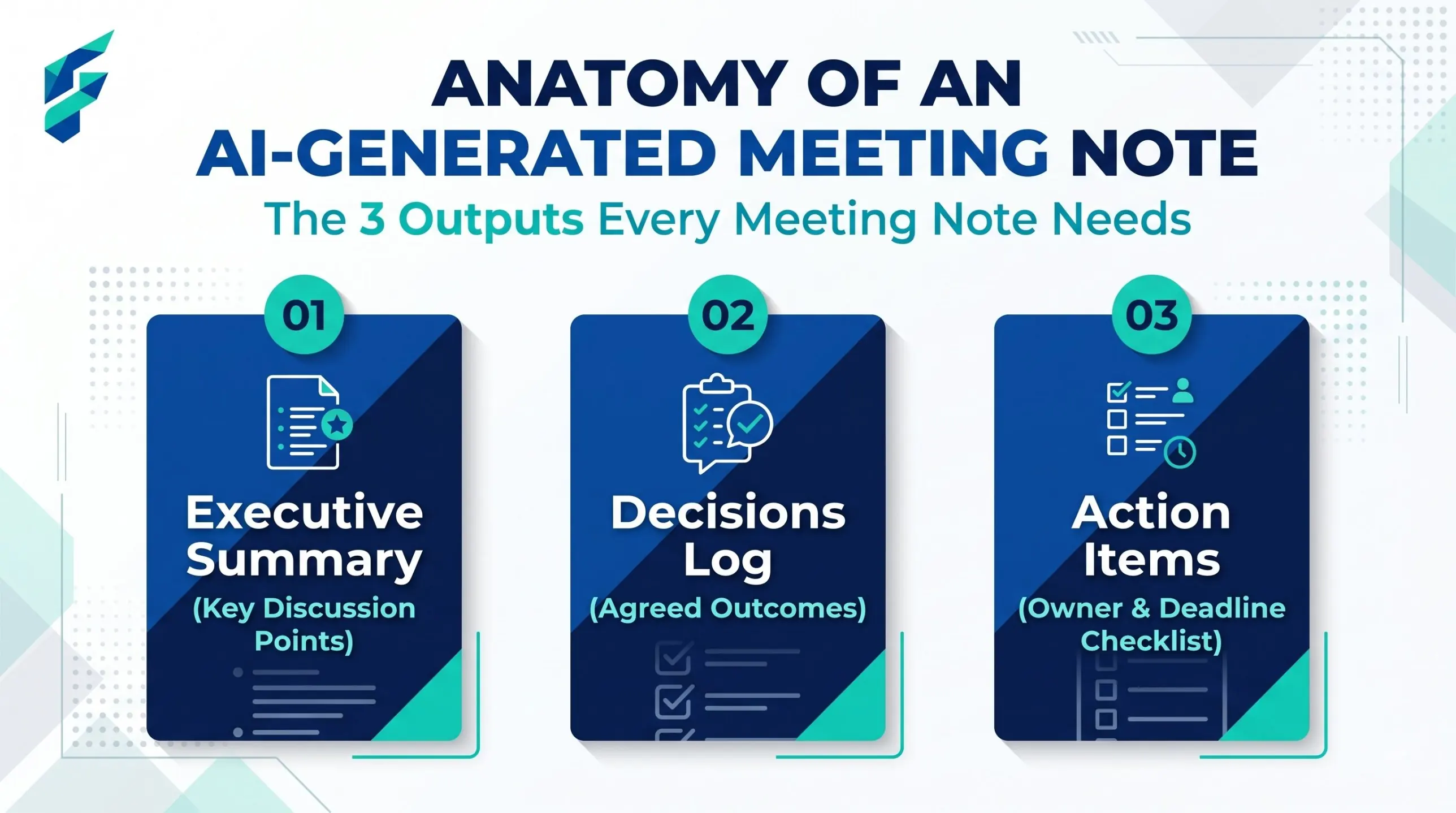
1. A 3-sentence summary
2. Decisions made (bullet list)
3. Action items: who, what, and by when (a table). Write [UNCLEAR] if the owner or date was not said.
4. Questions that were left open
Use only what is in the transcript. Do not guess names or dates.
Transcript: [paste]
If the transcript is too long: Split it in two or three parts. Ask for notes on each part, then paste all the notes together and ask for one final summary.
Privacy: ask before you record. Tell people the meeting is being recorded. Do not upload recordings with private customer or health details to a tool you have not checked. Read the tool's privacy page first.
After the notes
Send the notes the same day. Then use your notes in other work:
- Short summary for people who missed it: AI summarization tools for small business
- Share tasks with the team: AI collaboration tools for small business
- Remote team habits: AI productivity tools for remote small business teams
- Announce a decision: AI tools for writing internal memos
Mistakes to avoid
- Trusting numbers and names without checking.
- Recording without telling people.
- Sending a raw transcript instead of short notes.
- Using five tools when one is enough.
Real-world example: I first tried Otter on a 40-minute client kickoff call. The transcription was about 90% accurate, but it completely missed the specific deadline for the design mockups. When I pasted that same transcript into Claude with the prompt provided above, it correctly flagged the missing date as "[UNCLEAR]", forcing me to double-check my own notes before sending the summary. The combination of a free transcriber + a smart chatbot prompt is unbeatable for accuracy.