🍎 Google Tricks · iPhone · Search Tips
Google Tricks for iPhone
(Lens, Search Live and Widgets)
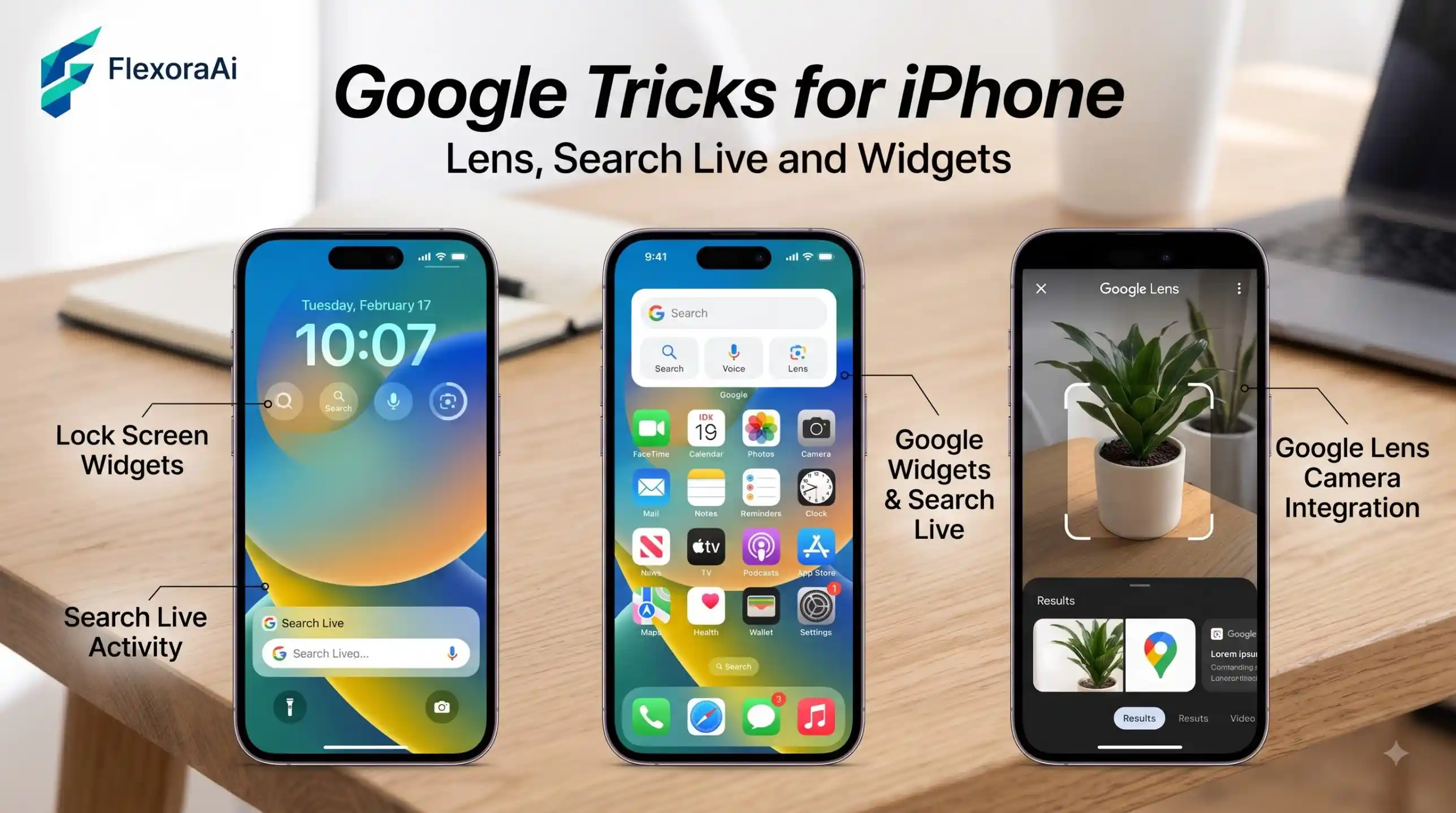
The iPhone has its own search, its own assistant and its own browser, so it’s fair to ask why you’d bother with Google at all. The answer is a handful of features that Apple doesn’t match, nearly all of them tucked inside one app.
This is a short, practical list of what the Google app and Chrome can do on an iPhone, and where iOS holds them back. It’s part of our Google search tips guide.
Quick answer: On iPhone, the Google app is the key. It offers Search Live for voice and camera help, a Circle to Search-style “Search Screen with Google Lens” inside the Google and Chrome apps, home and lock screen widgets, hum to search, and Live Activities for flights and sports. iOS limits some of these tricks to those apps.
Why the Google app matters on iPhone
Tom’s Guide made the case in 2026: the Google app is far more useful than many iPhone owners realize, partly because Google’s newer Gemini models now power its search features. Chrome for iPhone shares some of the same tools, but the Google app is where most of the new ones land first.
The Google tricks worth knowing on iPhone
| Trick | How to use it | Limit |
|---|---|---|
| Search Screen with Google Lens | In the Google app or Chrome, open the three-dot menu and tap Search Screen with Google Lens, then circle, highlight or tap | Only inside those two apps, not across all of iOS |
| Search Live | Open the Google app, tap Live and start talking. Turn on the camera to show what you mean | A spoken conversation, with web links in the answers |
| Lens modes | Open Lens and look for Translate, Create and Live | Create uses Google’s Nano Banana image model |
| Search widgets | Add the Google widget to your home screen or lock screen | Customize the theme in the app under General, then Widgets |
| Hum to search | Tap the mic and choose the song option, then hum or whistle | Works best in a quiet room |
| Flight and sports Live Activities | Allow Live Activities when the app asks before a flight, or follow a team | Shows on your lock screen |
| Send directions to your phone | On a computer, use Send to your phone in Google Maps | Needs the Maps app on your iPhone |
| Chrome handoff | Open a tab on your phone from Chrome on a Mac | Needs the same Google account |
A ten-minute setup
- Install the Google app and Chrome from the App Store, and sign in to the same account in both.
- Add the Google search widget to your home screen. Add one to the lock screen too if you like.
- Open Lens once so you know where the camera icon is. Try it on a plant or a menu in another language.
- Open the three-dot menu in Chrome and find Search Screen with Google Lens.
- Try Search Live with a real question, such as how to fix something near you.
- Before a trip, allow Live Activities so your flight shows on the lock screen.
If voice is the part you care about, our Google voice search hidden commands post explains which spoken tricks work where. For Lens, Photos and the other apps behind these features, see our Google products Easter eggs list.
What iOS won’t let Google do
The honest limits are worth knowing, because many guides skip them. Android’s Circle to Search works across the whole phone. On iPhone, Apple’s restrictions on third-party apps mean Google’s version works only inside Chrome and the Google app, and Google chose a different name for it for that reason. Google also moved Gemini out of the Google app and into its own standalone app on iPhone. Chrome for iPhone, unlike Chrome on desktop, doesn’t summarize pages with Gemini. A shortcut can work around some of this, but it’s a workaround, not a feature.
- No system-wide Circle to Search.
- Gemini is a separate app.
- Some Google features reach iPhone later than Android, and some never do.
Related brands
On the Google side you’ll meet the Google app, Chrome, Gemini, Google Lens, Google Maps, Google Photos and Google Drive. On the Apple side the relevant pieces are the iPhone, Safari, Shortcuts, Live Activities and Siri. Android owners can send files to iPhones with Quick Share, which we cover in our list of Google Easter eggs and in the Android guide in this series.
Frequently asked questions
It is Google’s Circle to Search-style feature for iPhone. In the Google app or Chrome, open the three-dot menu, tap Search Screen with Google Lens, and circle, highlight or tap what you want to search.
Not across the whole phone. Apple’s restrictions mean Google’s version works only inside Chrome and the Google app, where it is called Search Screen with Google Lens.
Open the Google app and tap the Live icon, then start speaking. You can turn on your camera to show Search what is in front of you.
Add the Google Search widget to your home screen or lock screen. You can customize its theme in the Google app under General, then Widgets, then Widget theme.
Yes. In the Google app, tap the mic and choose the song option, then hum, whistle or sing. It works best in a quiet place.
Gemini is a standalone app on iPhone. Google moved access to it out of the Google app, so you open the Gemini app to chat.
Sources checked
Facts here were checked against these sources on November 13, 2026. Gameplay and settings were not tested for this article, so try anything yourself before relying on it.
- Tom’s Guide, 2026 — the Google app features and Lens modes.
- Android Central, TechCrunch and MacRumors, February 2025 — Search Screen with Google Lens and its limits.
- Google blog and 9to5Mac — widgets, Maps handoff and the power-user tips.
- Cult of Mac — Gemini’s standalone app on iPhone.
Keep reading on NeuraPlus: the NeuraPlus list of Google Easter eggs, for the playful side of Google.